Changelog

What's new in Otter Mail, on the Mac and the web.

0.11.0 ·

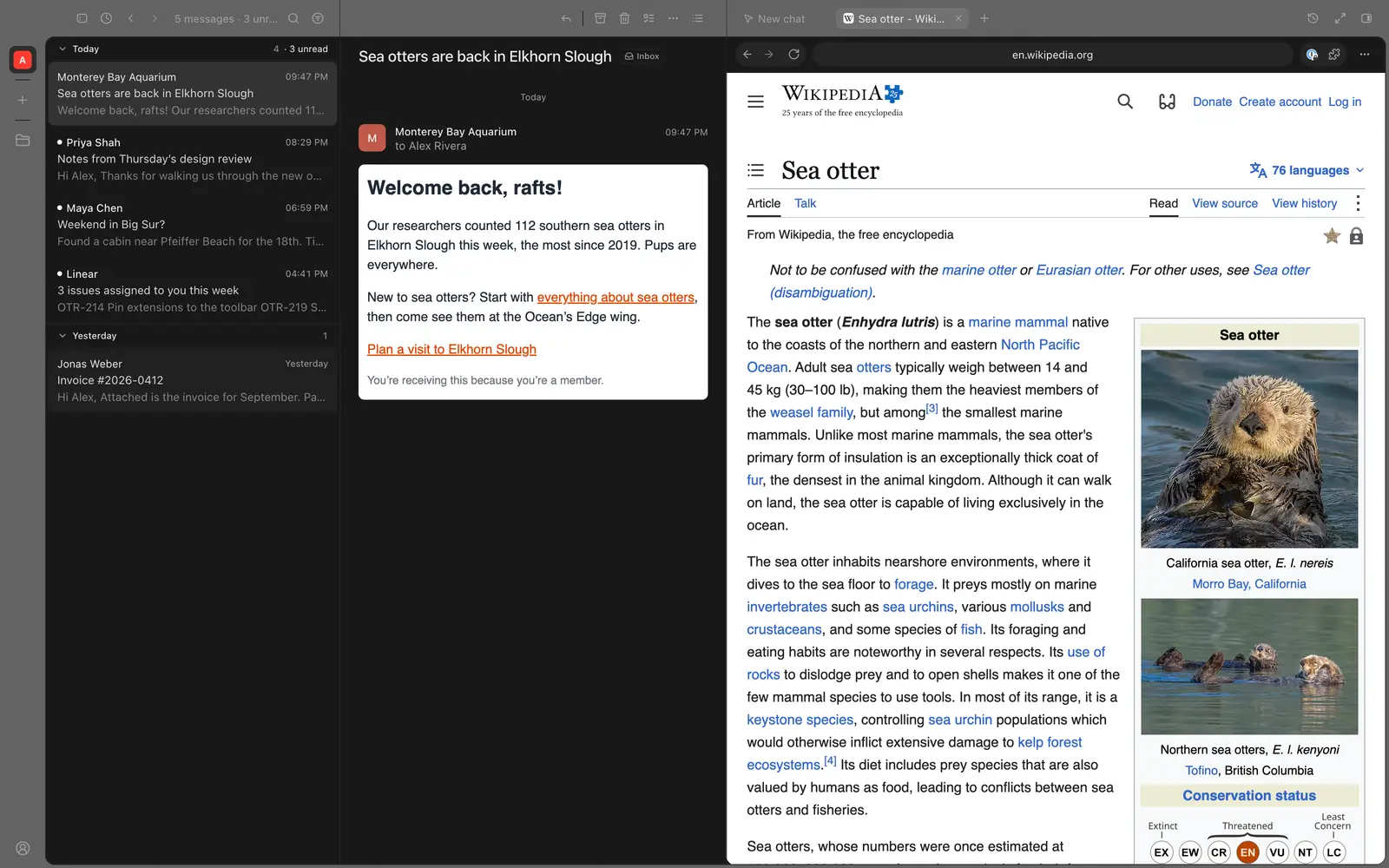
A browser beside your mail

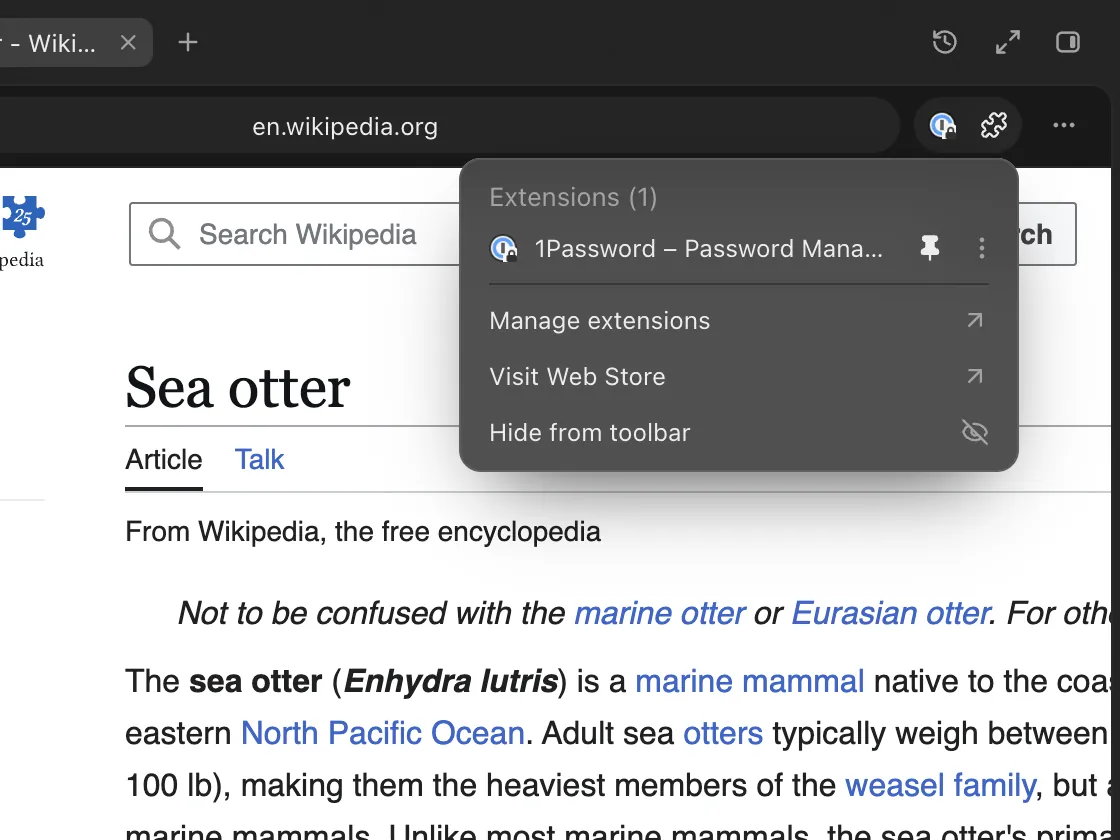
On the Mac, links from mail and chat open in a browser in the side panel, with Chrome extensions like 1Password.

A newsletter's link open beside the inbox, with 1Password pinned in the browser's toolbar
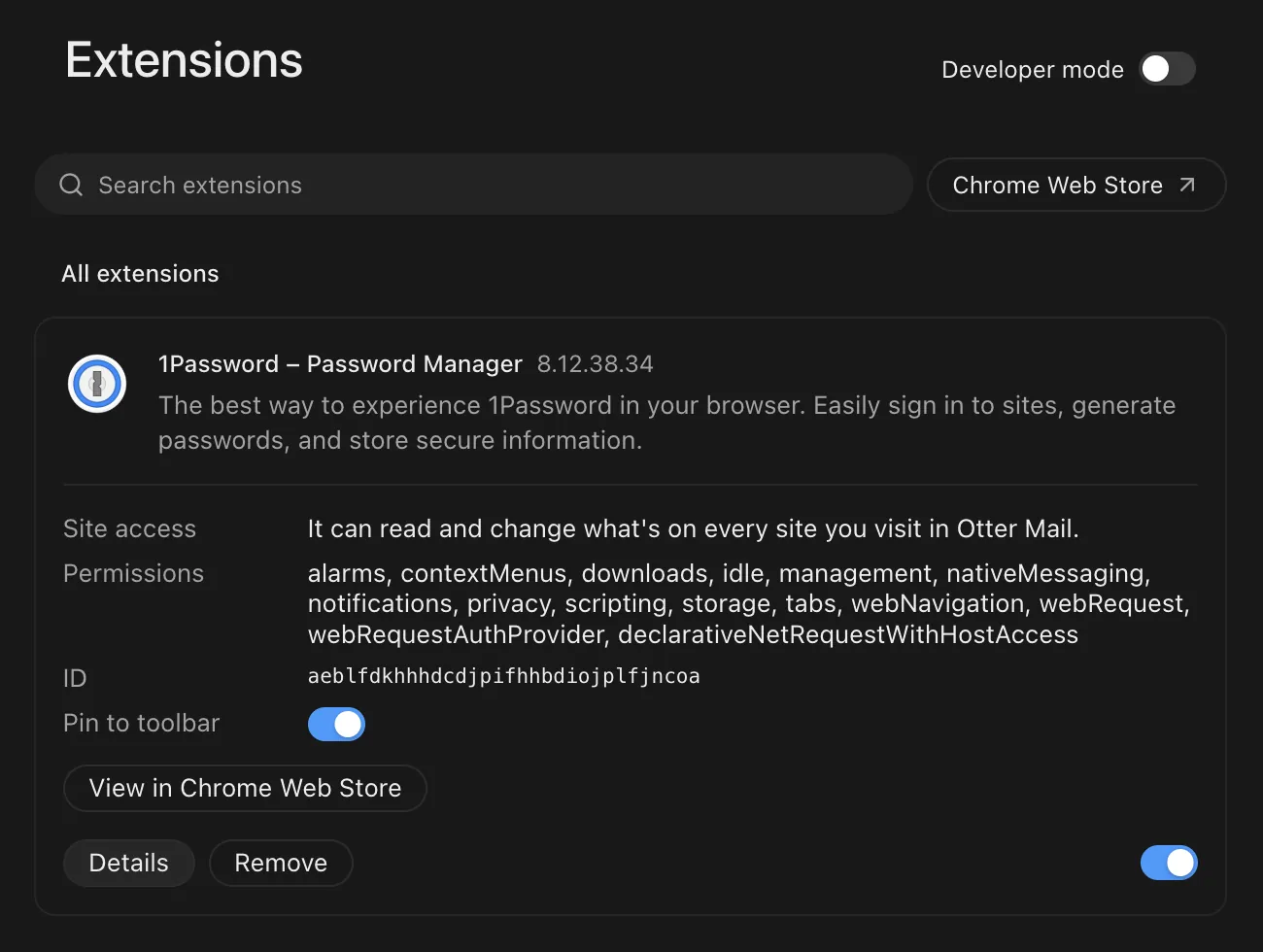
The Extensions menu: 1Password pinned, Manage extensions, Visit Web Store
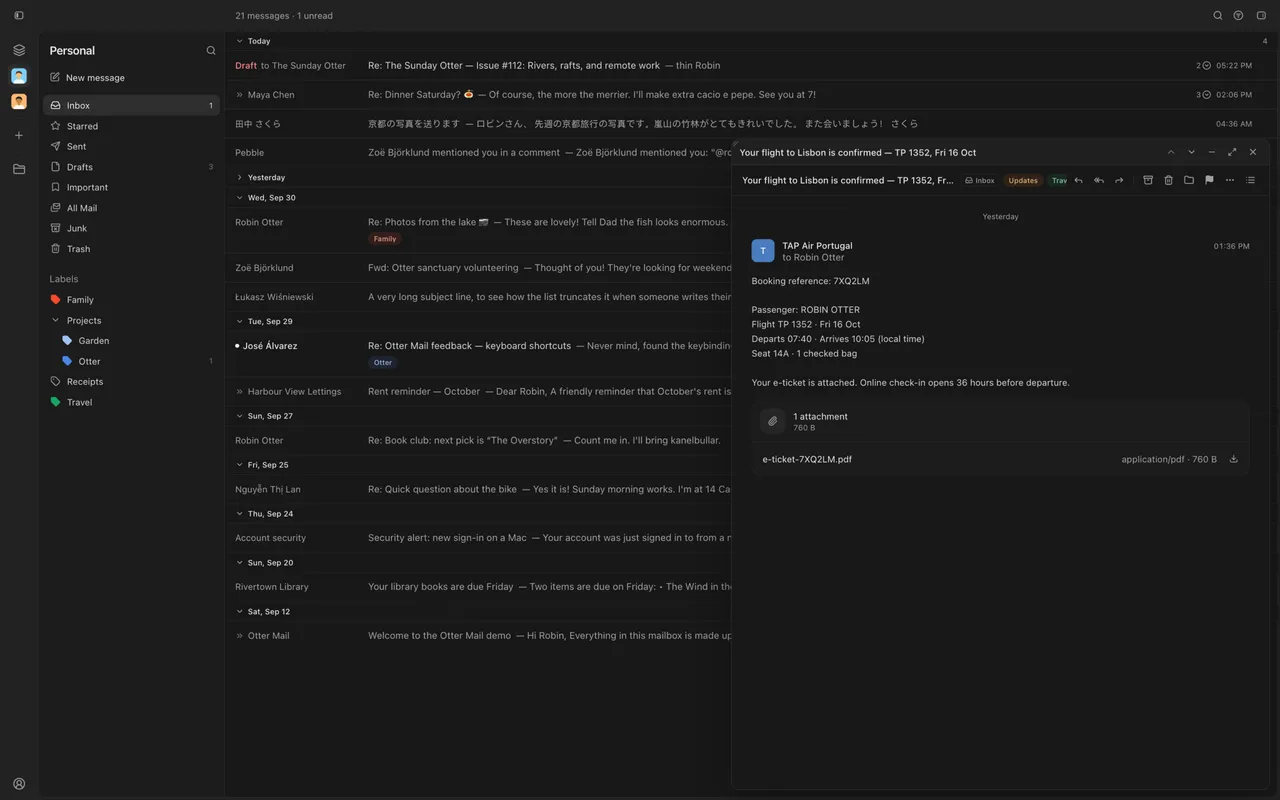
Settings › Extensions: 1Password's card with its site access, pin and on switch

New

  • Links open as tabs beside your chats, next to the conversation they came from.
  • An address bar that searches, back and forward, and a start page: ⌘T, then ⌘L.
  • Add extensions from the Chrome Web Store and pin them to the toolbar.
  • 1Password unlocks from its button and fills in sign-in pages.
  • Expand the panel to fill the window when a page needs the room.

Improved

  • Shift+↑/↓ selects several conversations in the list.
  • The sidebar and message list start narrower, leaving the conversation more room.
  • Otter Mail is open source, under the MIT license.

0.9.0 ·

Mail your way

On Mac and the web, choose your inbox layout or keep a conversation floating while you browse.

A floating conversation above the inbox, with collapsible day groups and full-width dividers

New

  • Appearance offers Classic or With dividers, plus Split view, Full inbox and Floating layouts.
  • Floating conversations move, snap back, resize and minimize to the bottom right.
  • Day groups collapse, and read messages can have a muted background. Turn either setting off.

Improved

  • Arrows highlight rows; Enter opens them. Automatic opening is an optional setting.
  • Keyboard previews wait two seconds before becoming read. Adjust the delay in Appearance.
  • Buttons respond to hover immediately.

Fixed

  • Browsing past a draft keeps keyboard navigation active.
  • Opening a conversation marks every message read immediately, before Gmail finishes.

0.8.1 ·

Chat results

Copy text from agent chats and open what the agent changed directly beneath its reply.

  • Copy a whole chat message or select just the text you need.
  • On the Mac, a compact list shows each turn's changes, including labels and archives.
  • Click a draft, project, view or calendar event to open it.

0.7.0 ·

Spaces and projects

Views become spaces of their own in the rail, and Projects keep one piece of work's conversations, from any mailbox, in one place.

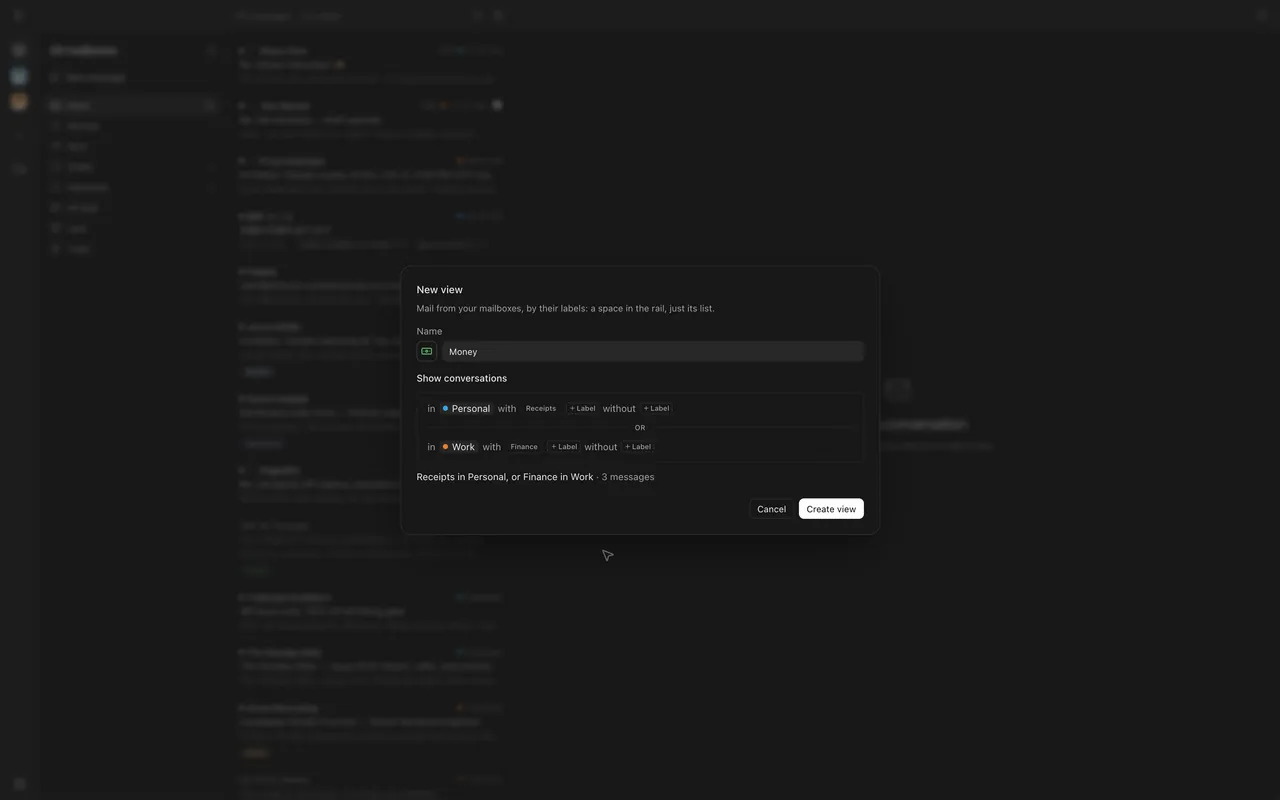
A new view "Money": Receipts in Personal, or Finance in Work, 3 messages
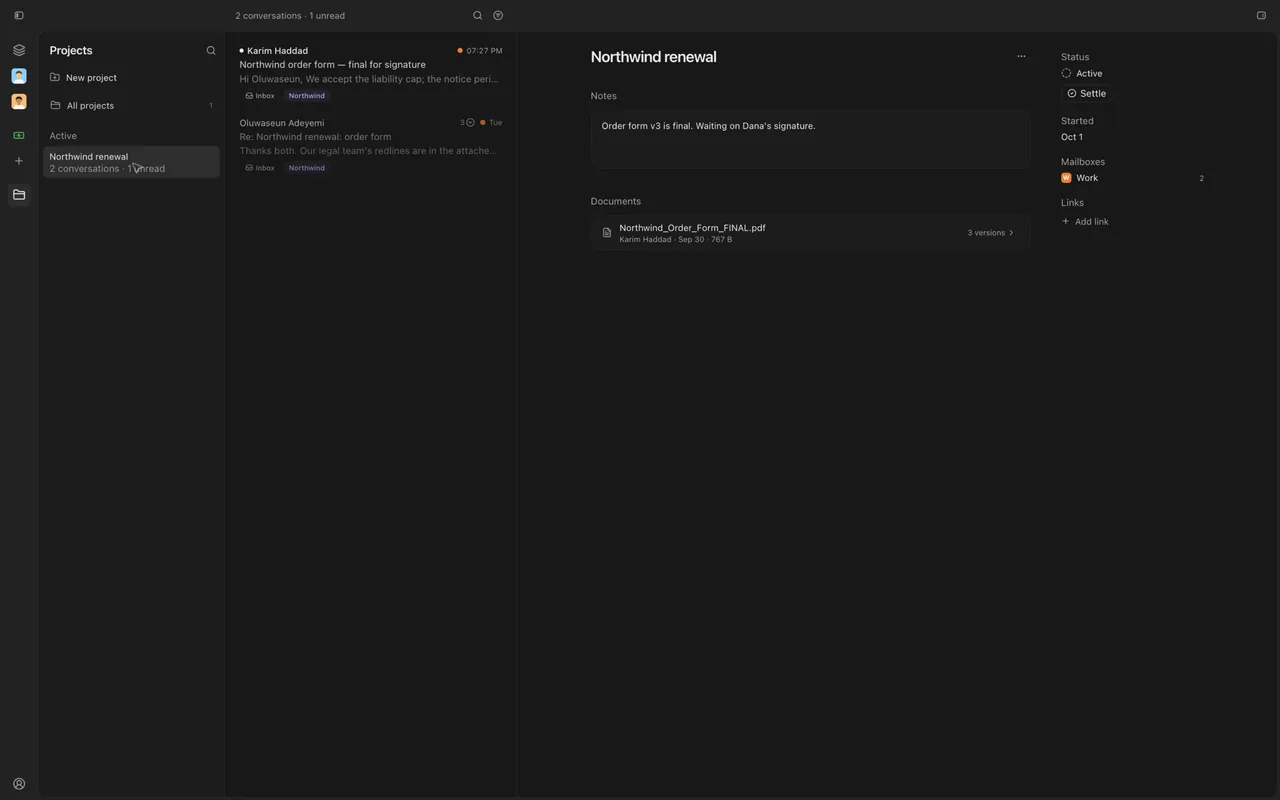
The project "Northwind renewal": its conversations, notes and a contract's three versions
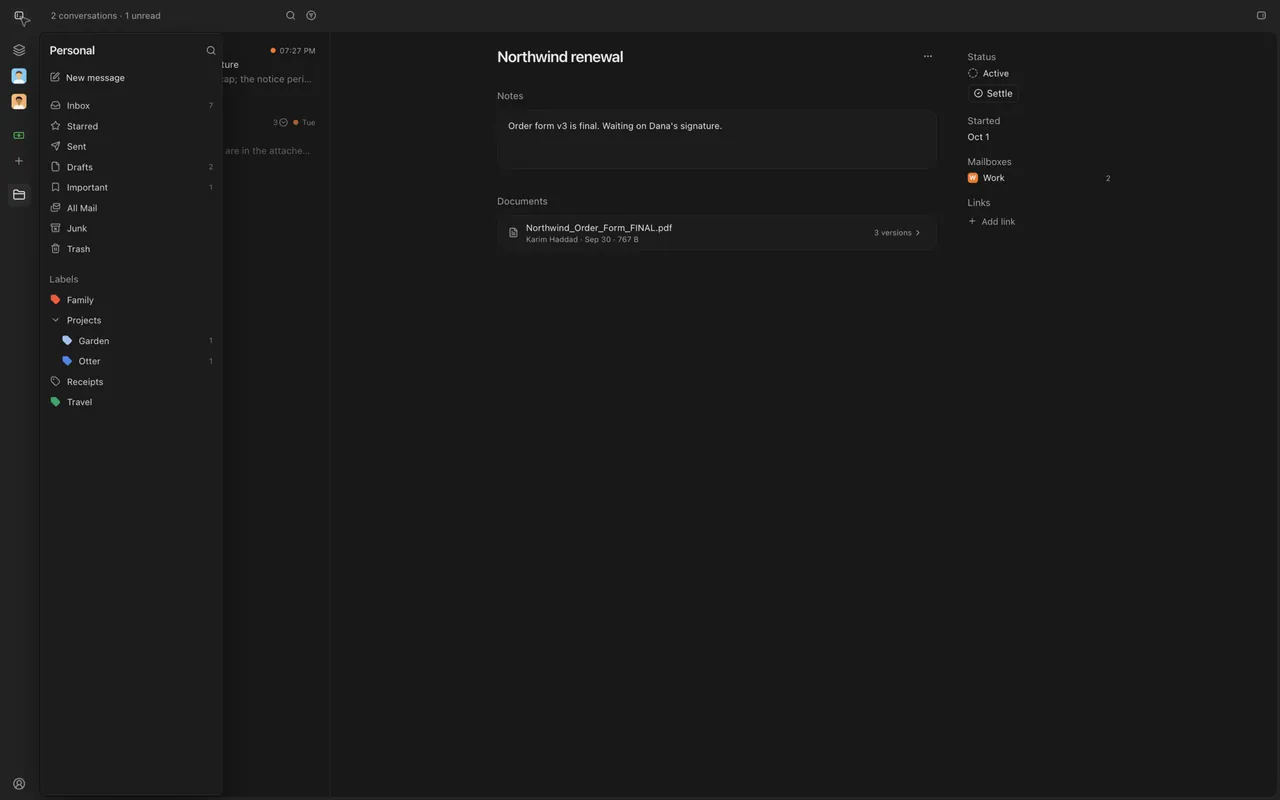
The sidebar hidden: hovering Personal in the rail peeks at its sidebar

New

  • Projects: gather a piece of work's conversations, documents, links and notes until it's settled.
  • Right-click any conversation and choose "Add to project", from any mailbox.
  • Views are spaces in the rail: just their list, across every mailbox they draw on.
  • Make a view with "New view" (+) in the rail: in this mailbox, with these labels, without those.
  • Give a view an icon or an emoji, in a color.
  • With the sidebar hidden, hover a space in the rail to peek at its sidebar.
  • Your agent can start projects, add conversations to them and make views.

Improved

  • Views are made and edited where they live, no longer in Settings.
  • "Show unread dots in the rail" is a setting now, off to begin with.

0.6.0 ·

A new sidebar

Your mailboxes now sit in a slim rail down the left edge, so switching and spotting new mail never needs the sidebar.

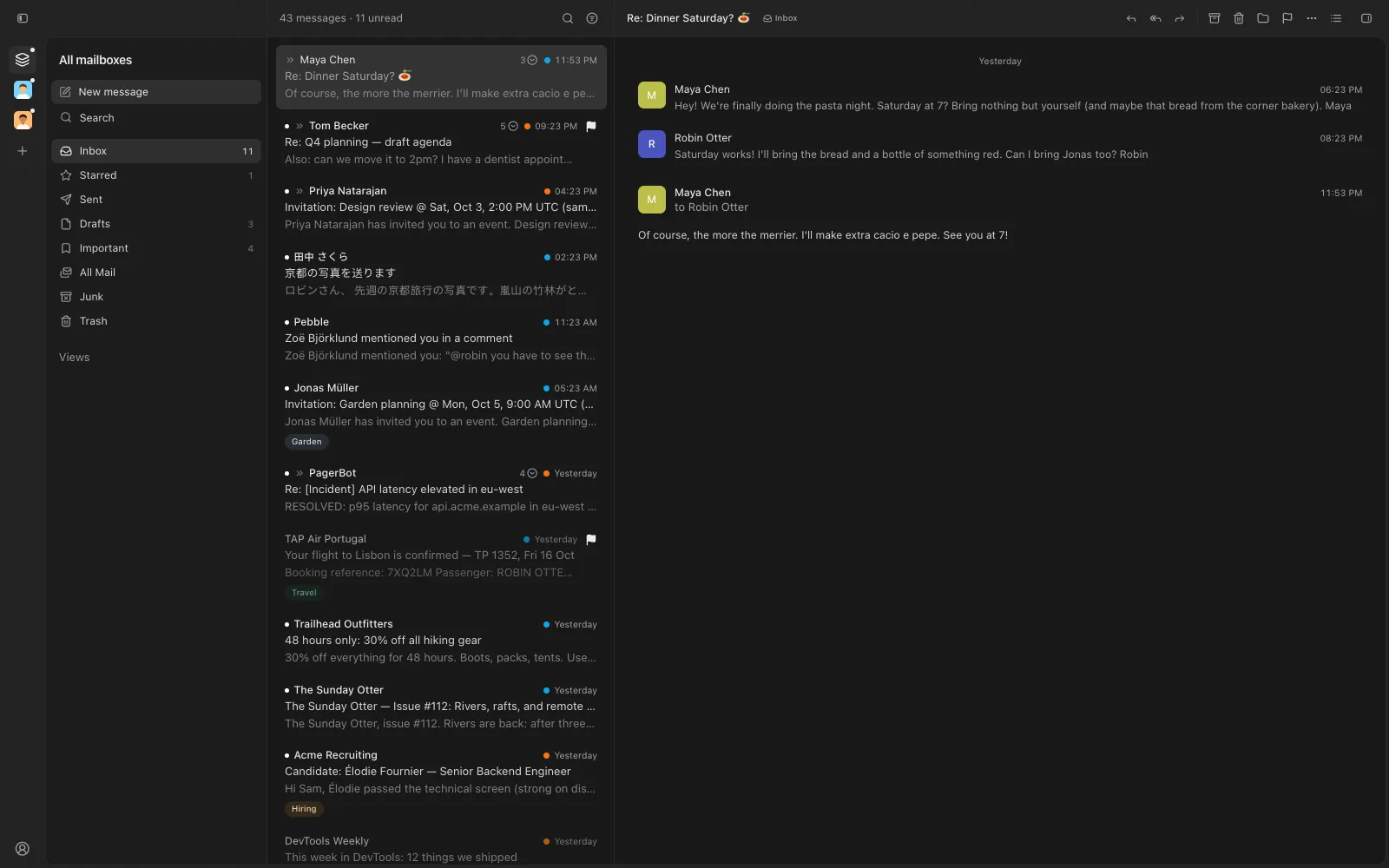
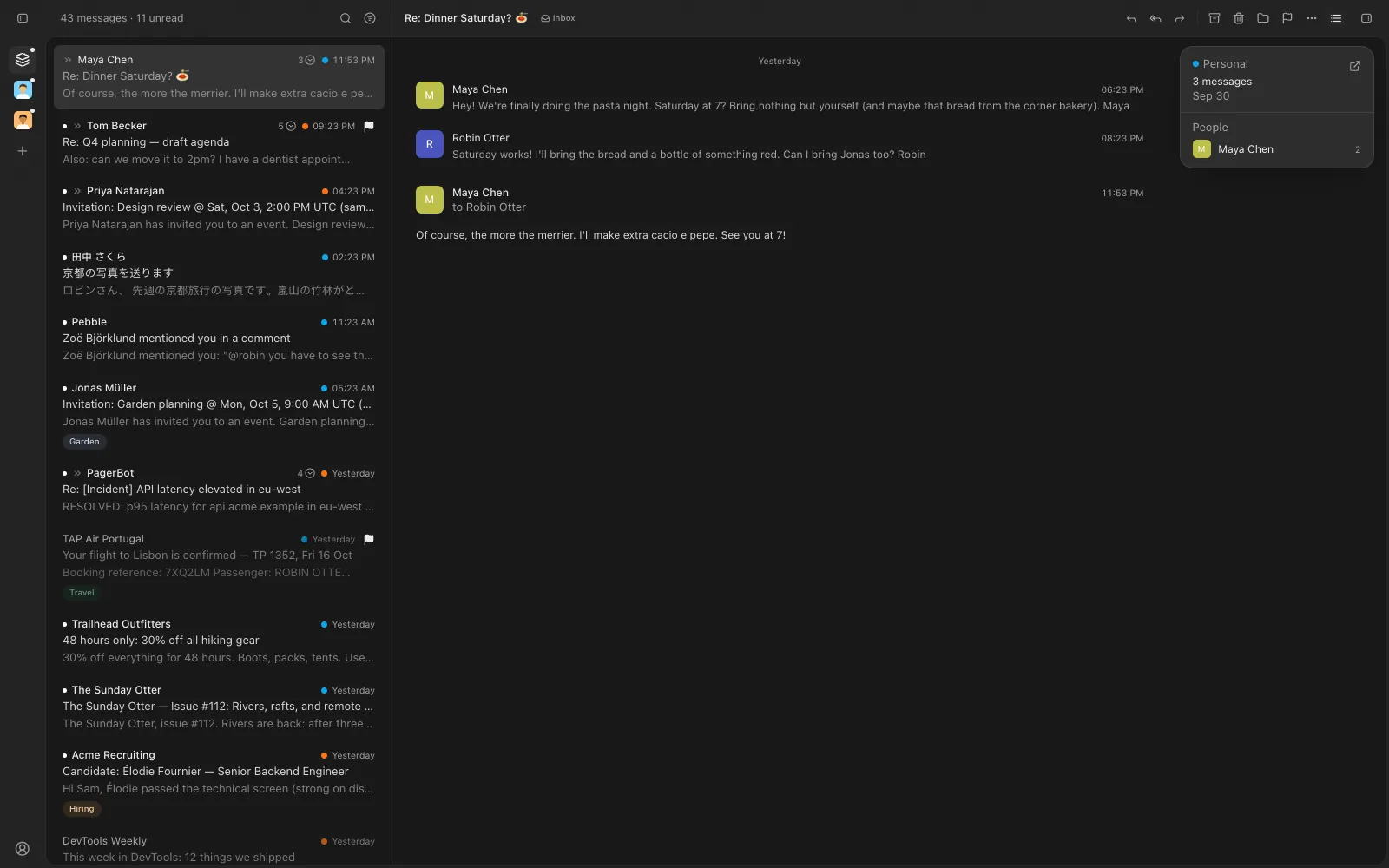
The rail of mailboxes on the left, then the sidebar and a conversation in one panel
The sidebar hidden: the rail stays, and the mail takes the room

New

  • A rail of mailboxes down the left: click one to switch; a dot marks new mail.
  • Add a mailbox from the rail's +; your account, Settings and feedback sit at its foot.
  • Hiding the sidebar keeps the rail, so every mailbox stays one click away.
  • On the Mac, the title bar and rail let the window's frosted glass through.

Improved

  • The sidebar sits inside the mail panel, with an edge that shows in every theme.
  • The sidebar and agent toggles show whether their side is open.
  • The unread filter wears Apple Mail's filter icon, filled while it's on.
  • Mail and Settings each remember their own sidebar, open or closed.

0.5.19 ·

Themes by asking

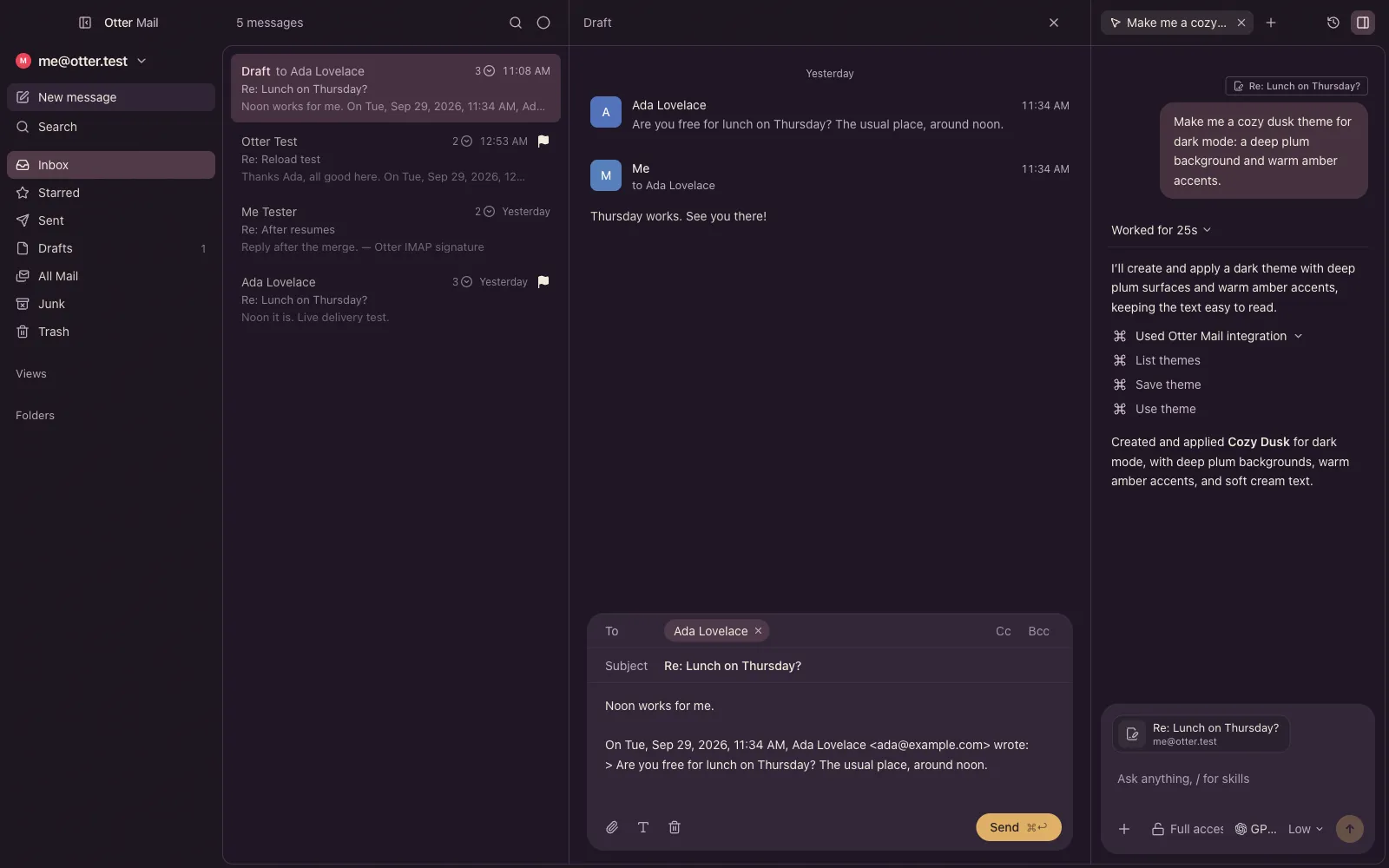
Describe a theme to the agent and it makes it and puts it on: Claude and Codex can now make, change and wear themes.

Codex, asked for "a cozy dusk theme", made Cozy Dusk and the app is wearing it: plum surfaces, amber accents

New

  • On the Mac, ask Claude or Codex for a theme in your own words; it's made and worn.
  • Ask them to change the theme you're wearing: a built-in is copied first, never changed.
  • They can switch themes too, for light or dark mode.
  • Theme changes ask first, like mail changes, unless the chat has Full access.

0.5.18 ·

Your own themes

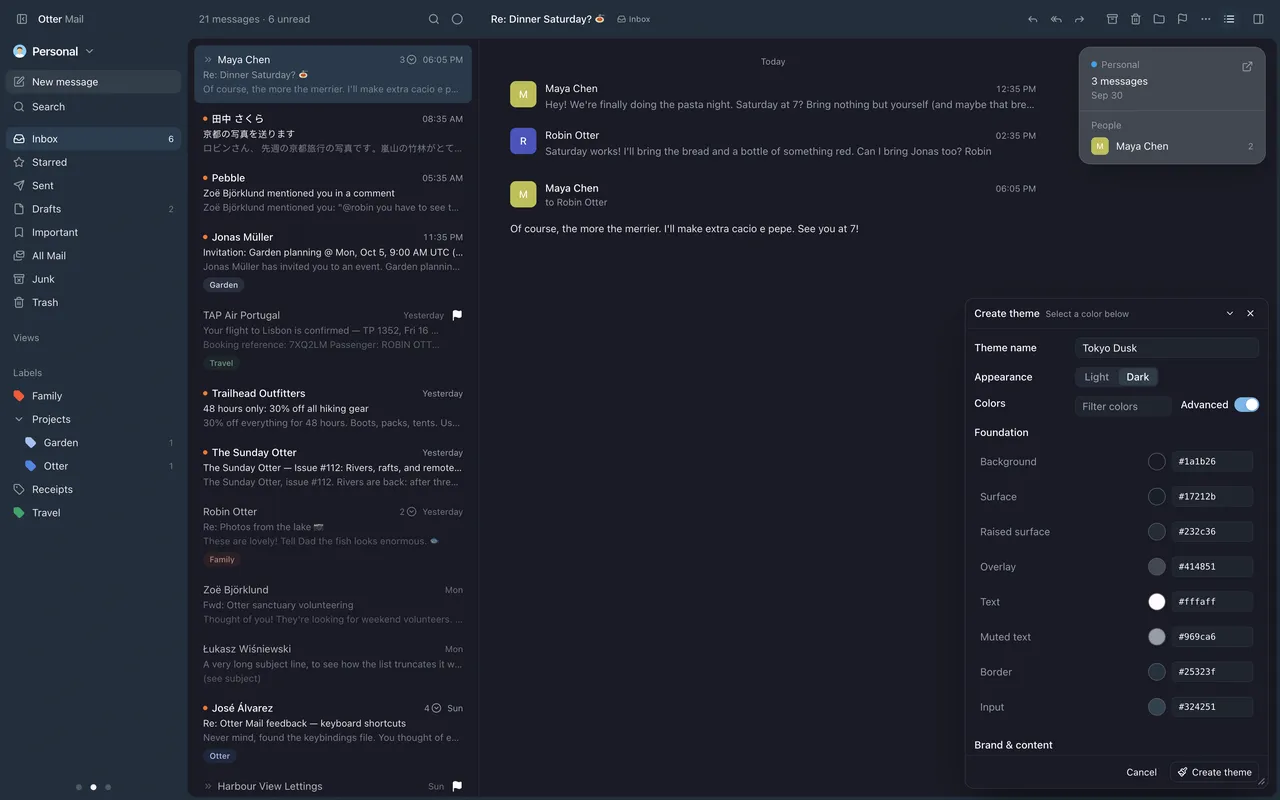
Make color themes of your own, the way T3 Code does: duplicate one and tune it while the whole app repaints as you go.

The theme editor over the inbox, the app wearing the draft: navy with orange accents
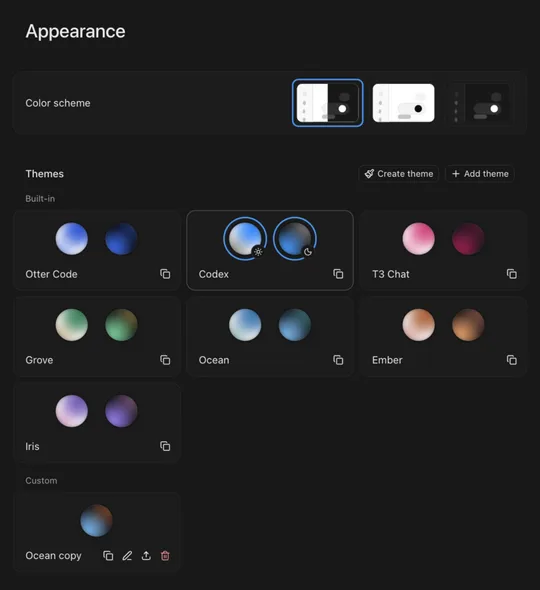
Settings › Appearance: the built-in themes, and your own under Custom

New

  • Duplicate any theme to make it yours; built-in themes stay as they are.
  • The editor is T3 Code's: set two colors and the rest follows, or open Advanced for every color.
  • Pick a color in the editor to dim everything except where it's used.
  • "Add theme" takes T3 Code and VS Code theme files; export yours to share them.
  • Your themes sync with your Otter account.

Improved

  • Appearance is more compact, with built-in and custom themes apart.
0.5.17 ·

Search in Settings

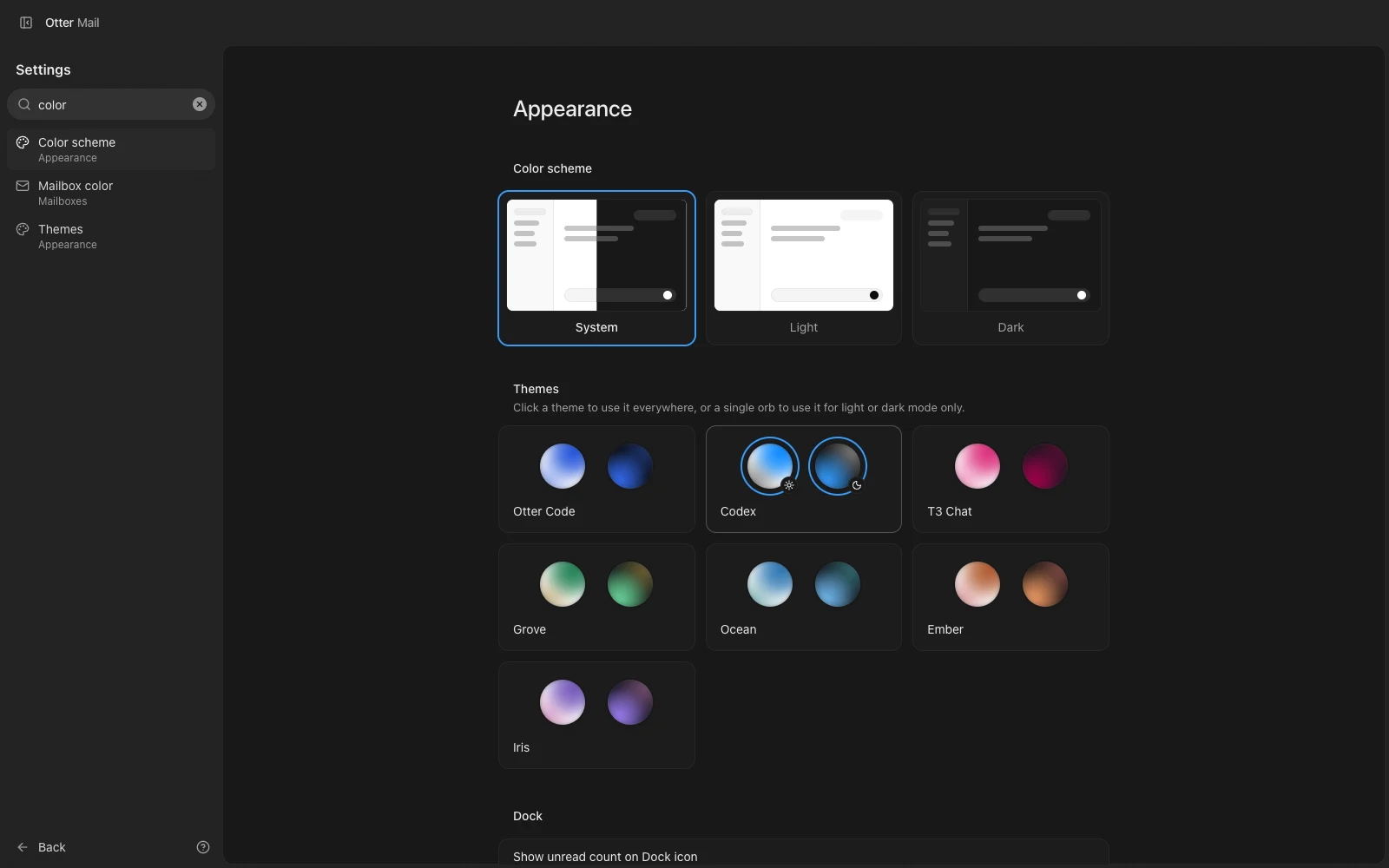
Type what you're looking for at the top of Settings, and pick it to land right on it.

Settings with "color" typed: Color scheme, Mailbox color and Themes

New

  • Search Settings by name or by what a setting does: "sync", "dark", "signature".
  • Each result shows where it lives; picking one opens it there, highlighted.
  • Shortcuts are searchable too, even by their keys: "mod+b" finds Sidebar: Toggle.
  • Press / in Settings to start searching.

0.5.16 ·

Feedback with agents

Turn a bug report or feature idea into a clear GitHub issue, with help from your own coding agent.

New

  • "Send feedback" in the mailbox menu, Settings, and ⌘K.
  • Choose a bug report or feature request, and the affected platform.
  • Add a screenshot and anonymous diagnostics; review everything before opening GitHub.
  • On the Mac, Claude or Codex investigates and brings its draft back into the app.
  • Use Ghostty or your usual terminal; Otter Mail remembers your choice.

0.5.14 ·

Profile pictures

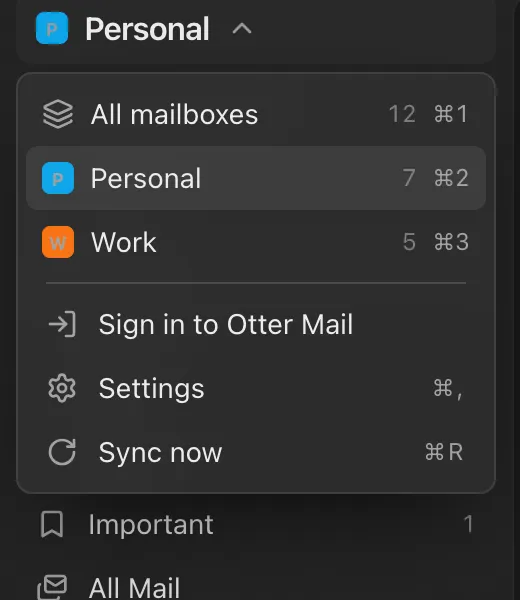
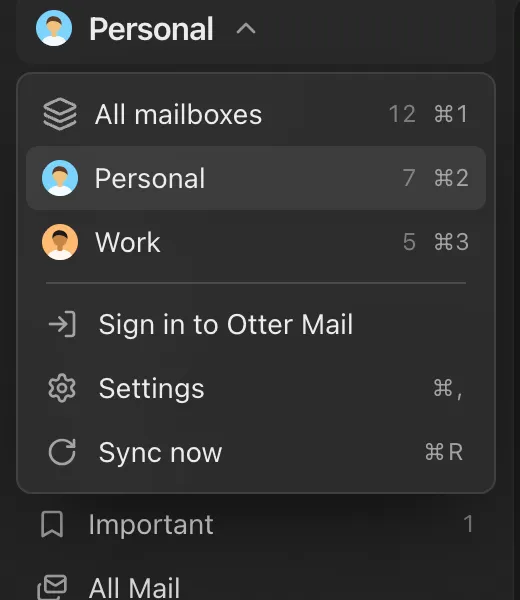
Each Gmail mailbox now shows your Google profile picture, so you can tell them apart at a glance.

Before: the mailbox switcher with a colored letter for each mailbox
After: the same switcher with each mailbox's profile picture

Improved

  • Setup shows the pictures of the mailboxes you connect.
  • A new Google photo or name shows up on its own, on every device.
  • On the Mac, "Show unread count on Dock icon" in Settings → Appearance turns the badge off.

0.5.12 ·

What's new

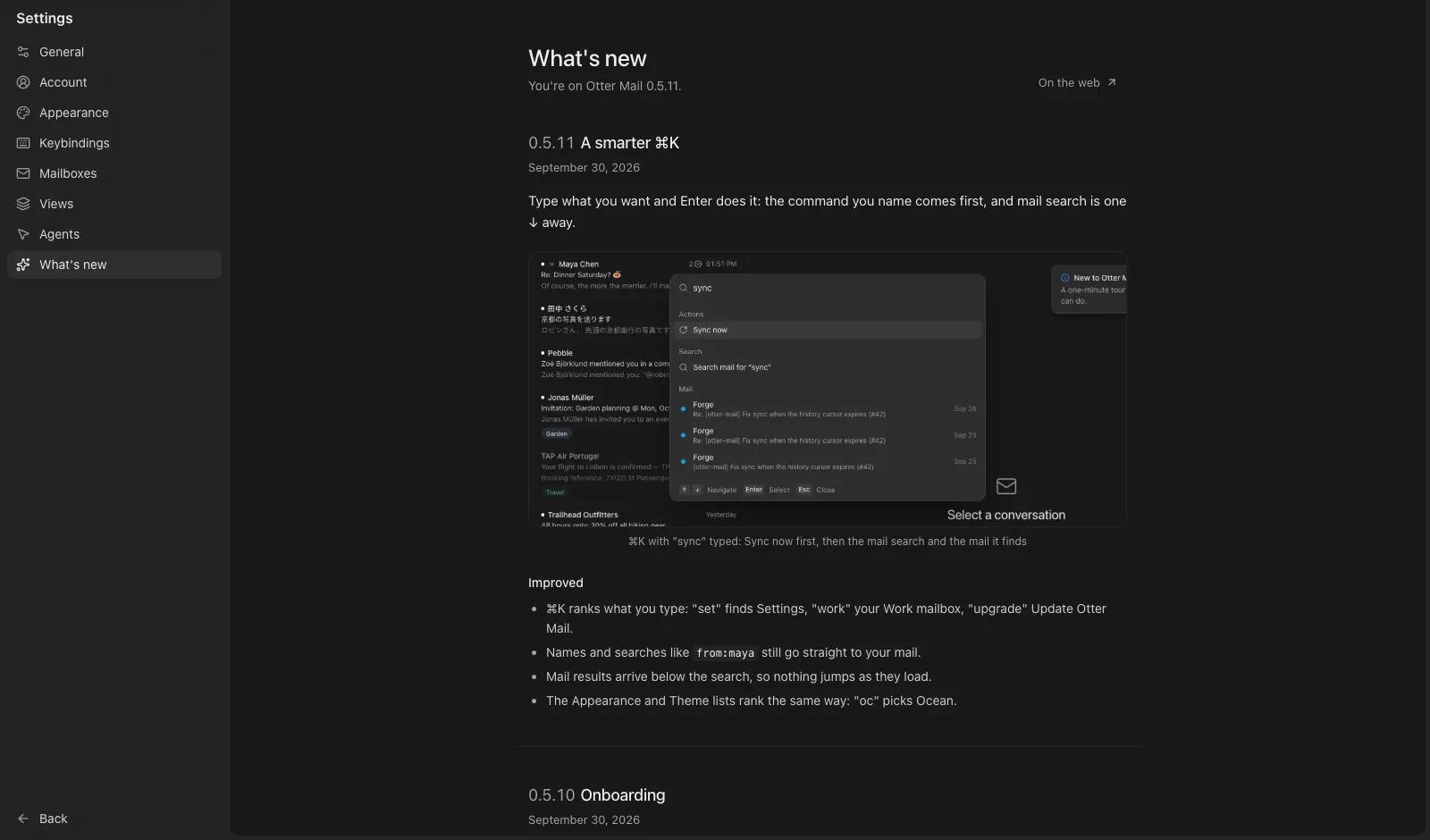
Every release now comes with a short note, in the app and on the site.

Settings → What's new, with the newest release on top

New

  • "What's new" in Settings lists every release, newest first, and works offline.
  • After an update, a toast names the new version and opens its note.
  • The update card links to the coming version's note before you restart.
  • "What's new" in ⌘K.
  • The changelog on the web at mail.otterware.app/changelog.

0.5.11 ·

A smarter ⌘K

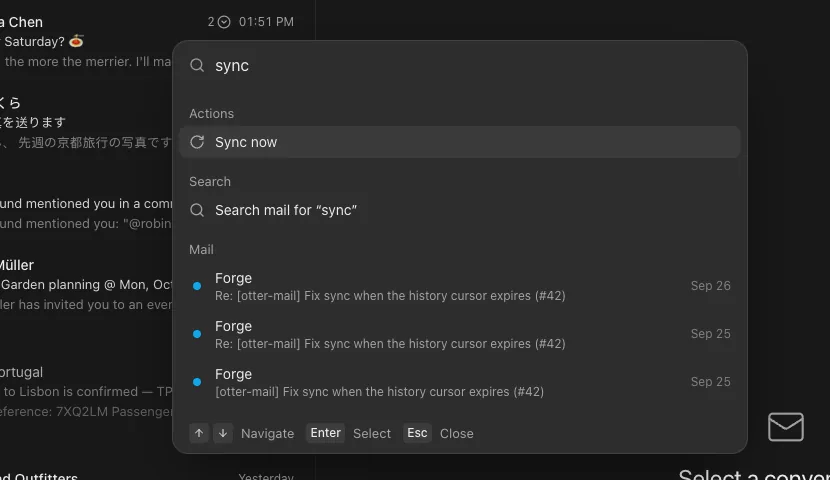
Type what you want and Enter does it: the command you name comes first, and mail search is one ↓ away.

⌘K with "sync" typed: Sync now first, then the mail search and the mail it finds

Improved

  • ⌘K ranks what you type: "set" finds Settings, "work" your Work mailbox, "upgrade" Update Otter Mail.
  • Names and searches like from:maya still go straight to your mail.
  • Mail results arrive below the search, so nothing jumps as they load.
  • The Appearance and Theme lists rank the same way: "oc" picks Ocean.

0.5.10 ·

Onboarding

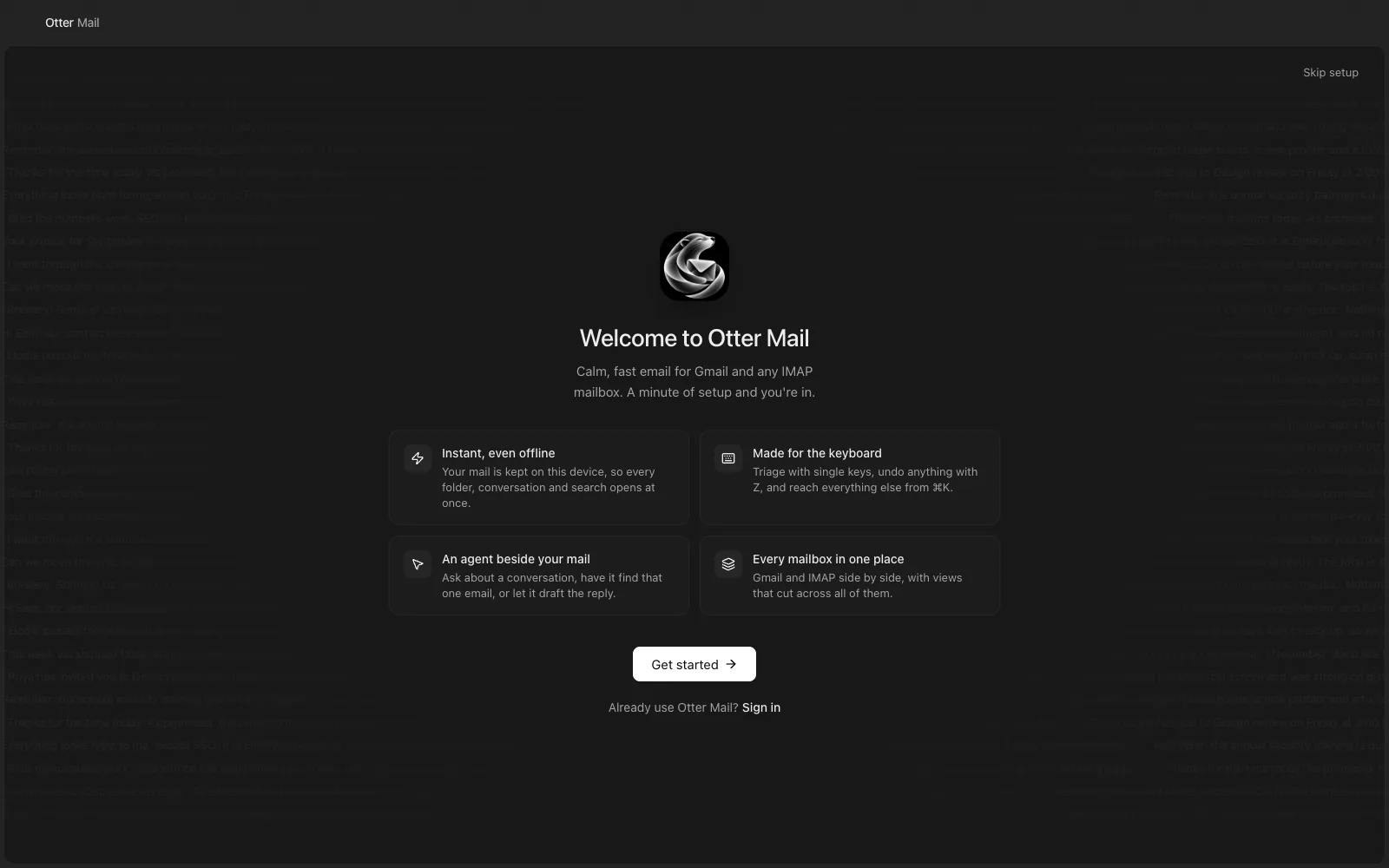
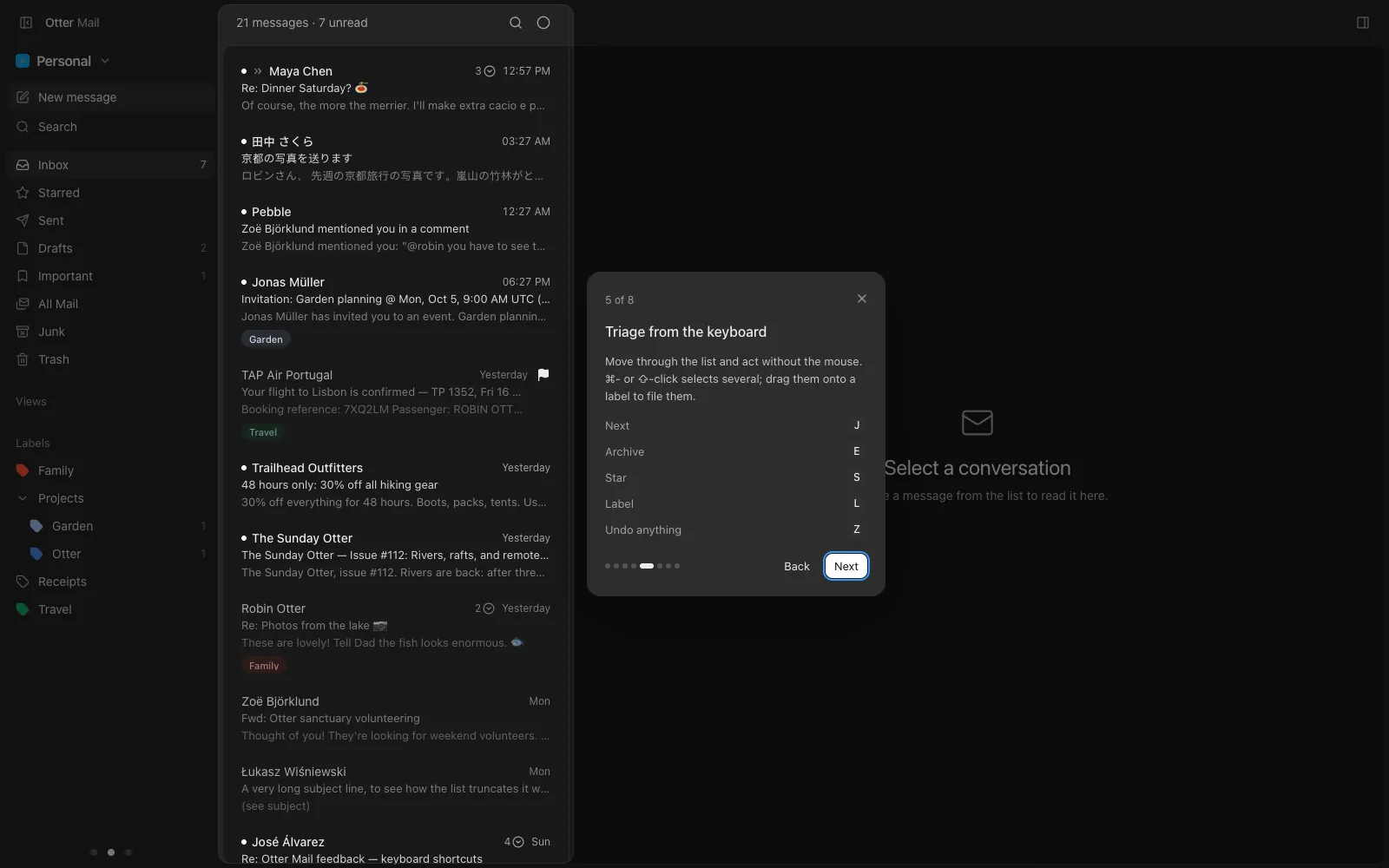
A first run that sets you up for real, and a one-minute tour of the app on your own mail.

The welcome screen, with the landing page's field of mail drifting behind it
The tour lighting up the message list, with its shortcuts

New

  • A setup: add a mailbox, pick a look, notifications, your agent, then practice the keys.
  • The keys step is a practice inbox that answers your real shortcuts, remapped ones too.
  • A tour of mailboxes, search, views, the reader and the agent. Run either again from ⌘K.
  • "Update Otter Mail" in ⌘K checks, downloads and restarts into the new version.

Improved

  • Hermes connects right from the setup's agent step.
  • Mac releases are Apple Silicon only.

0.5.9 ·

Mail on shared hosts

Adding a mailbox finds the right server for domains on shared hosting.

Fixed

  • When a domain's mail server answers IMAP itself, adding the mailbox now finds it.
  • A sign-in that fails on a certificate names the domain's mail server.

0.5.8 ·

Permission cards

When an agent wants to change something, it asks in a card where you type, and shows exactly what will happen.

Improved

  • The card names the action, the command or the files, then Deny (Esc) or Allow once (↩).
  • Allowing for the rest of the chat, or stopping the agent, is behind "…".
  • Otter Mail moved to mail.otterware.app.